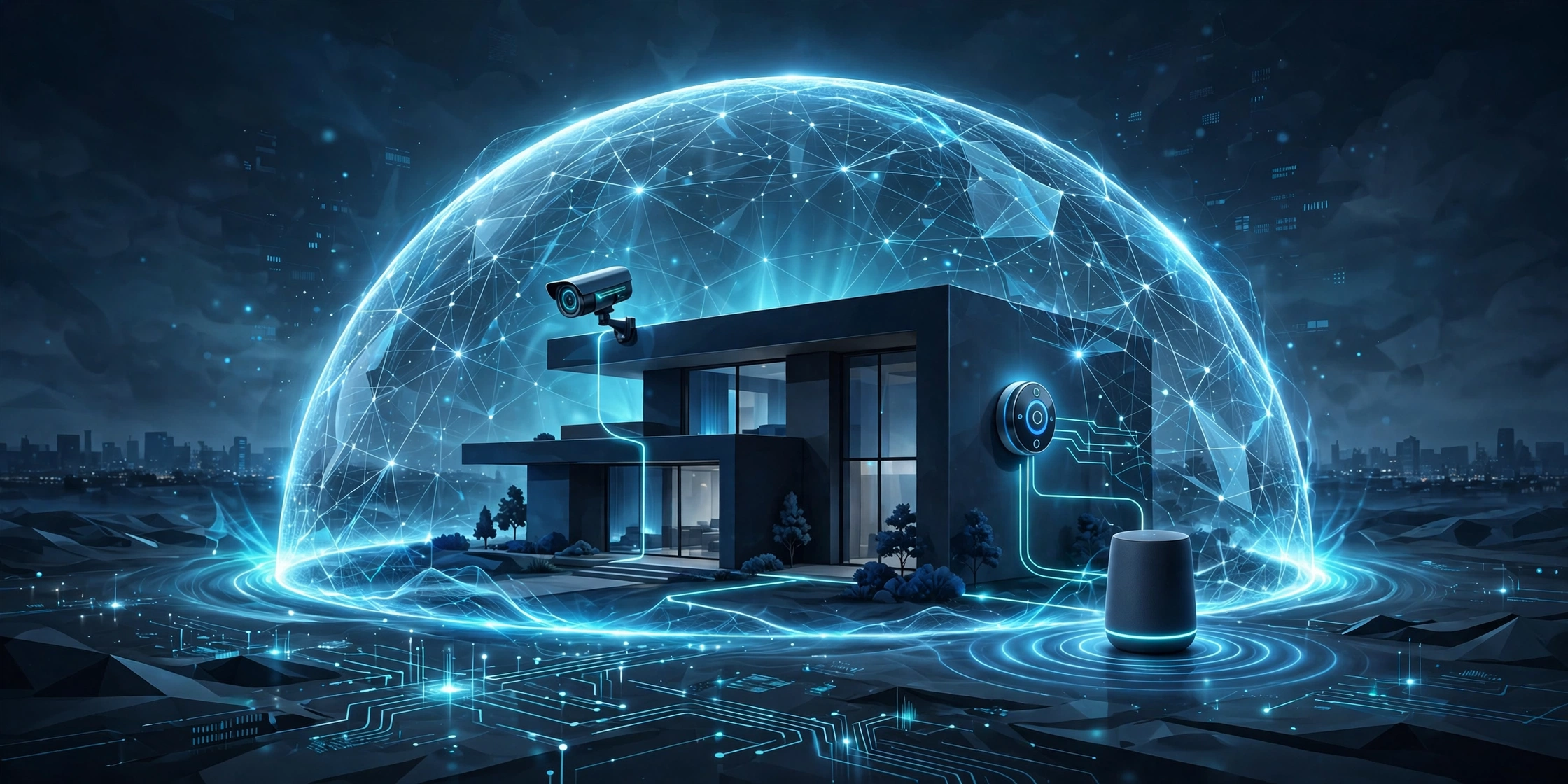
A smart camera watches your front door. A voice speaker listens in your kitchen. A smart lock guards your front door, and a smart TV knows what your household watches each evening. Each of these is a small computer, connected to the internet, made by a different company, with different settings – and most of them were designed for convenience first and security second. Treating them all with the same generic advice misses the risks that are specific to each one.
This guide works device by device, then covers the network setup that protects all of them at once. If you only have twenty minutes, do the network section and the camera section first: those two changes reduce the risk of every other device in the house.
Before You Buy: Four Questions That Prevent Most Problems
- Does the manufacturer still update this model? A device whose maker has stopped releasing firmware updates becomes permanently vulnerable the day a new flaw is found. If you cannot find an update policy, treat that as an answer.
- Can you change the password, and can you turn off remote access? If a device has no password setting, or forces you to accept remote access you do not want, choose another model.
- Does it need to be smart at all? Every connected feature is attack surface. A television that needs Wi-Fi for streaming is reasonable; an appliance whose only smart feature is an app you will never open is risk without payoff.
- What data does it collect, and where does it go? Check the privacy settings before buying, not after installing. If a simple device demands your contacts, location, and voice history to function, it is collecting more than it needs.
Cameras and Doorbells: The Highest-Stakes Devices
A compromised camera is not just a privacy breach; it is a window into your home and your routines. Give cameras the strictest treatment in the house:
- Change the default password on day one, and give the camera its own unique password stored in your password manager. Default credentials are the first thing automated scanners try.
- Turn off any remote viewing feature you do not actively use. If you can watch the camera from anywhere in the world, anyone with your credentials can too.
- Use the physical shutter or privacy cover when the camera is not needed, and keep cameras out of bedrooms and bathrooms entirely. A software setting can be changed remotely; a shutter cannot.
- Decide where recordings are stored. Cloud storage means footage leaves your house; local storage means a stolen camera or drive takes the footage with it. Whichever you choose, protect the account behind it with two-factor authentication.
Voice Speakers: A Microphone in Your Private Rooms
A smart speaker is always listening for its wake word, which means a microphone sits in your most private rooms and sends recordings to the cloud. Manage it deliberately:
- Open the companion app and review your voice history. Delete stored recordings regularly, or enable auto-delete so they do not accumulate indefinitely.
- Turn off voice purchasing, or require a spoken PIN for it. A voice command, or a recording of your voice, should not be able to spend your money.
- Use the physical mute button when discussing anything sensitive. A hardware switch cannot be overridden remotely the way a software setting can.
- Audit third-party skills or actions you have enabled over the years. Each one is another company with access to your voice data or smart-home controls. Remove the ones you do not actively use.
- Never link a voice assistant to a smart lock without understanding exactly what a voice command could unlock, and who within earshot could give that command.
Smart TVs, Thermostats, and Locks: Different Devices, Different Rules
Smart TVs track viewing habits and often listen for voice commands. In the TV’s settings, turn off automatic content recognition and voice data collection if you do not use them, and deny the companion app permissions it does not need, such as contacts and location, to run a television. Keep the TV’s firmware updated, and remember that a TV’s microphone and camera deserve the same caution as a speaker’s.
Thermostats and household sensors seem harmless, but their schedules reveal when the house is empty. Protect the account behind them with a unique password and two-factor authentication, and disable any data-sharing option labelled as improving services unless you have a reason to keep it.
Smart locks deserve the most caution of all, because a digital failure becomes a physical one. Choose a lock from a maker with a clear update policy, keep a physical key as a backup, review who holds digital keys or guest codes, and remove codes for guests, cleaners, or former tenants the moment they are no longer needed. Test the lock after every firmware update: security that stops you from entering your own house will be disabled in frustration, which helps nobody.
The Single Most Powerful Step: Isolate Them on Your Network
Put smart devices on a separate network segment from your computers and phones. Most routers offer a guest network: connect all smart gadgets to it instead of your main Wi-Fi. If a camera is compromised, the attacker is trapped on the guest network with no easy path to your laptop, your files, or your banking sessions.
Setting it up takes a few minutes in your router’s admin panel:
- Create or enable the guest network, and give it a strong, unique Wi-Fi password.
- Move every smart device onto that network, one at a time, and confirm each one still works.
- Turn on the guest network’s isolation setting if your router offers one, so devices on it cannot see each other or your main network.
- Expect one trade-off: features that rely on devices finding each other, such as casting from your phone to your TV, may stop working across networks. If that matters to you, check your router’s instructions for allowing just that one connection, rather than moving everything back to the main network.
For the especially cautious, a dedicated VLAN on routers that support it isolates smart devices even further. Our router security guide covers the router settings behind all of this in detail.
Your Setup-Day Checklist for Every New Device
- Default password changed to a unique one, stored in the password manager.
- Firmware updated on day one, with automatic updates enabled where offered.
- Remote access, Telnet or SSH, and cloud features you do not use switched off.
- App permissions reviewed: contacts, location, and microphone denied unless genuinely needed.
- Data sharing and voice or video recording history set to auto-delete or off.
- Device moved to the guest network for smart devices.
- Two-factor authentication enabled on the cloud account behind the device.
Signs a Device May Be Compromised – and What to Do
Watch for cameras rotating on their own, devices switching on at odd hours, indicator lights active when nothing should be happening, unexplained network slowdowns, or password-change emails you did not trigger. Any one of these deserves investigation, not dismissal.
If you suspect a compromise, work in this order: disconnect the device from the network, so it cannot be used further or send more data out; factory-reset it; update it to the latest firmware; set a new unique password; enable two-factor authentication on its cloud account; and only then re-add it to the isolated guest network. If the device’s maker no longer supports it, do not reconnect it at all – use only its offline functions, or replace it.
Retiring and Selling Old Devices
When support ends, the device becomes a permanent vulnerability, not a bargain to keep running. Before selling or giving away any smart device, factory-reset it and unlink it from your accounts, so the next owner does not inherit your Wi-Fi credentials, your cloud access, or your recorded history. Remove the device from your companion apps and from the guest network’s device list, and delete any stored recordings tied to it.
Frequently Asked Questions
Is a guest network really necessary if I have strong passwords? Yes, because passwords protect accounts, while network isolation limits what a compromised device can reach. A camera with a strong password can still be attacked through a software flaw; isolation contains that failure.
How often should I review all of this? Review the router’s connected-device list monthly – an unfamiliar device is worth investigating immediately – and repeat the full checklist once a year, or whenever you add a new device to the house.
The Bottom Line
A smart home does not have to be a surveillance home, but it does not secure itself either. Buy devices whose makers still update them, change the defaults on day one, give cameras and locks the strictest treatment, and – above all – keep gadgets on a network of their own, away from the devices that hold your data and your money.
About the Author






1 thought on “IoT Device Security: Protecting Your Smart Home (2026 Guide)”