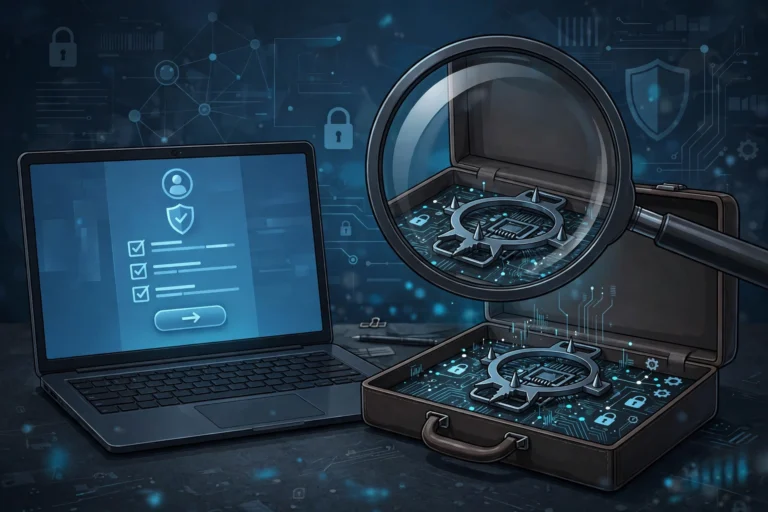

In the ancient story, Greek soldiers hid inside a giant wooden horse, which the people of Troy wheeled through their own gates as a trophy. By nightfall, the soldiers climbed out and the city fell. Cyber criminals use the exact same trick, and it works for the exact same reason: the victim opens the gate voluntarily.
A Trojan horse – usually just called a Trojan – is malware disguised as something legitimate: a useful app, a game mod, a document, a software update, or a security tool. You download it and run it yourself, believing it is safe. Once inside, it hands control, data, or access to the attacker. That deception is the key to stopping Trojans: a Trojan usually cannot break in on its own. It needs your trust.
Trojan vs Virus vs Worm: Clearing Up the Confusion
- Trojan: disguised as legitimate software. It does not copy itself. It spreads because users download and run it. Its power is deception.
- Virus: attaches itself to a host file or program and spreads when that infected file is run or shared. It needs a host and usually some human action.
- Worm: copies itself and spreads automatically across networks by exploiting vulnerabilities, with no human action required.
- Ransomware: not a separate spreading method at all, but a payload – what malware does once inside. A Trojan can deliver ransomware, and so can a worm. That is why the same attack is sometimes described as both a Trojan and a ransomware incident.
How a Trojan Attack Unfolds, Step by Step
- The lure. You encounter something that looks legitimate and useful: a free photo editor, a cracked version of paid software, a game cheat, a “system optimizer,” an invoice attachment, or a message claiming your account needs verification. The lure is designed to match something you already want or worry about.
- The installation. You run the file or install the app and grant it permissions, because it looks trustworthy. Some Trojans even perform the promised function – the photo editor really does edit photos – so you suspect nothing.
- The payload. The hidden malicious code activates. It may steal passwords, log keystrokes, open a backdoor for remote access, take screenshots, or download additional malware. This can happen immediately or days later, timed to avoid suspicion.
- The persistence. The Trojan buries itself in system folders, disguises its process under a plausible name, adds itself to startup, and restarts with your computer so it survives reboots. Some variants disable or blind security software as an early step.
The key stage is stage two: no exploit, no broken lock, just a reasonable-looking decision made with incomplete information. That is why Trojan defenses are as much about habits as about software.
Anatomy of a Trojan Lure: Five Common Disguises
1. The fake invoice or shipping notice. An email claims to be from a delivery company, with an attachment labeled like “Invoice.pdf” and urging urgent action. Real delivery companies do not ask you to enable macros to view a tracking update.
2. The cracked or “free” version of paid software. A forum link offers an expensive program for free. The download is repackaged with a Trojan, and the installer asks for administrator permission, which the victim grants because installing software normally requires it.
3. The fake update or security warning. A pop-up claims your browser or antivirus is out of date, or that your computer is infected, and offers a download to fix it. The “fix” is the malware. Legitimate updates come through the software itself, never through a pop-up on an unrelated website.
4. The game mod, cheat, or crypto tool. Gamers and crypto users actively seek unofficial tools – mods, cheats, wallet helpers – and their communities normalize downloading from forums, which is exactly the habit a Trojan needs.
5. The fake mobile app. An app impersonates a popular bank, crypto wallet, or game, often through a link outside the store urging you to sideload it. Once installed, it can steal SMS codes, overlay fake login screens on real banking apps, and harvest credentials.
Common Types of Trojans
- Backdoor Trojans open a secret entrance so attackers can return to your computer remotely at any time.
- Remote Access Trojans (RATs) give the attacker full remote control: they can watch your screen, use your webcam, browse your files, and type as if sitting at your keyboard.
- Banking Trojans steal financial credentials, sometimes by injecting fake login forms into real banking websites.
- Downloader and dropper Trojans are small and innocent-looking. Their only job is to survive installation and then download bigger malware, often ransomware or spyware.
- Spyware and keylogger Trojans silently record keystrokes, screenshots, and browsing activity, harvesting logins over weeks.
- Fake antivirus Trojans arrive as pop-ups claiming your PC is infected and urging you to install their “cleaner.” The cleaner is the malware.
- Mobile Trojans target phones through malicious apps, stealing SMS codes, banking logins, and crypto wallet keys.
Real-World Examples Worth Knowing
Zeus. Emerging around 2007, Zeus became the template for modern banking Trojans, stealing credentials by injecting fake forms into legitimate banking pages. Its source code later leaked, spawning countless variants.
Emotet. Emotet began as a banking Trojan and evolved into a malware-delivery service rented out to other criminal groups. It spread heavily through malicious email attachments urging victims to enable macros, until an international law enforcement operation disrupted its infrastructure in January 2021.
Qakbot. Another banking Trojan that later became a loader for ransomware gangs, Qakbot spread through phishing emails and hijacked email threads that looked like replies in conversations victims already trusted. It was disrupted by a law enforcement operation in 2023.
Warning Signs You May Have a Trojan
No single symptom proves an infection – slow computers have many innocent causes – but several together should prompt a scan: sudden sluggishness with high CPU use while idle; unknown programs or homepage changes; pop-ups and fake security warnings; antivirus disabled or unable to update; unfamiliar network activity; friends receiving strange messages from you; missing or encrypted files; and login alerts you did not trigger.
Check directly too: review startup programs in Task Manager on Windows or Login Items on a Mac, and review phone app permissions. A flashlight app that can read your contacts and SMS messages is not a flashlight.
How to Protect Yourself: A Practical Checklist
- Download software only from official sources: the developer’s own website or the official app store.
- Treat unexpected attachments as guilty until proven innocent. Verify with the sender through a different channel, not a reply to the suspicious email, before opening one.
- Show file extensions. In Windows File Explorer, turn on “File name extensions” under View; on a Mac, set Finder to show all filename extensions. A file named “Invoice.pdf.exe” is not a PDF, and seeing the real extension exposes the trick.
- Never enable macros on an unexpected document. A document demanding you enable macros or enable content to view it is waving a red flag. Close it and verify the sender first.
- Read installation prompts. Uncheck bundled “bonus” software, decline extra toolbars, and never grant administrator permission to software you do not fully trust. Admin rights turn a minor infection into a system-wide one.
- Use a standard user account for daily work instead of an administrator account, so malware has a harder time burrowing into the system.
- Keep antivirus running and updated, and keep your system patched. Modern security software catches many Trojans by behavior, not just known signatures.
- Audit phone app permissions regularly and avoid sideloading apps from random websites.
- Back up regularly, including one offline copy, so a ransomware payload becomes an inconvenience, not a catastrophe.
What To Do If You Are Infected
Act in this order: changing passwords on an infected machine just hands the new passwords to the attacker.
- Disconnect from the internet to cut the attacker’s remote access and stop further data theft.
- Run a full antivirus scan with updated definitions, and ideally a second-opinion scanner from a different vendor.
- Change passwords from a clean device, starting with email, then banking, then social and work accounts, enabling two-factor authentication as you go.
- Check bank, card, and email accounts for unauthorized activity, and freeze cards if financial credentials may have been exposed.
- If the infection persists, back up your data and reinstall the operating system. Some Trojans bury themselves too deep to trust a cleanup. Restore files from a backup made before the infection, not one that may contain the Trojan.
The Bottom Line
A Trojan’s power comes almost entirely from your trust. It cannot usually force its way in, so it dresses up as something you want, waits for you to open the door, and then works quietly. Download from official sources, verify unexpected attachments through another channel, show file extensions, question any document demanding macros, and keep your defenses updated. Do those five things consistently, and the wooden horse stays outside the gates where it belongs.
About the Author